Home › Help Center › Spectrogram editing
Spectrogram editing
The spectrogram shows time left to right, frequency bottom to top and level as brightness. Sounds invisible in the waveform become obvious shapes.
Free to edit and save WAV · Windows 11 & 10 (64-bit)
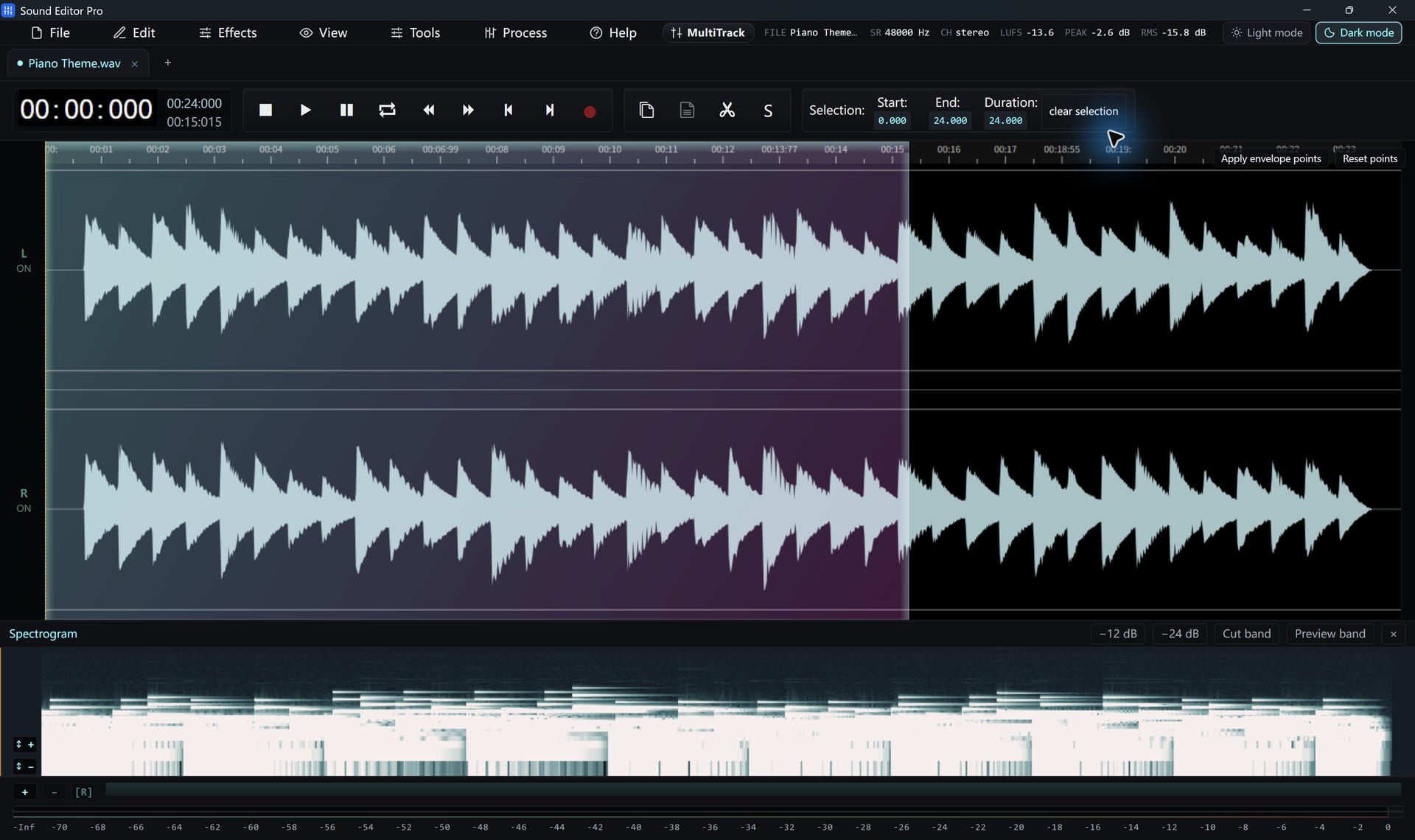
Reading the spectrogram
| Shape | Usually |
|---|---|
| Vertical line | Click, pop or tap |
| Horizontal line | Hum, whistle or tone |
| Bright patch at high frequency | Sibilance, squeak |
| Haze across all frequencies | Broadband noise |
Removing a sound
- Open the spectrogram dock; it follows the waveform view and playhead.
- Draw a rectangle around the unwanted sound, as tight as possible.
- Preview the selected band.
- Choose −12 dB for a subtle reduction, −24 dB for strong, or Cut to remove.
- Listen in context and undo if the result is hollow.
Spectral editing reduces a frequency band in a time range. It is not AI source separation and cannot extract a voice from music.
Analysis tools
- Frequency Analyser and Spectrum Analyser for a detailed frequency plot.
- LUFS, peak and RMS readouts.
- Tempo & Rhythm Tools: BPM estimation, tempo tap and metronome.
Hear The Difference On Your Own Material
Download Sound Editor Pro, edit without limits and save WAV for free. Register when you need MP3, FLAC or AAC.
Download Sound Editor ProFree to edit and save WAV · Windows 11 & 10 (64-bit)