Home › Help Center › Record
Record
Open the recorder with Tools › Record. The finished take opens straight into the editor.
Free to edit and save WAV · Windows 11 & 10 (64-bit)
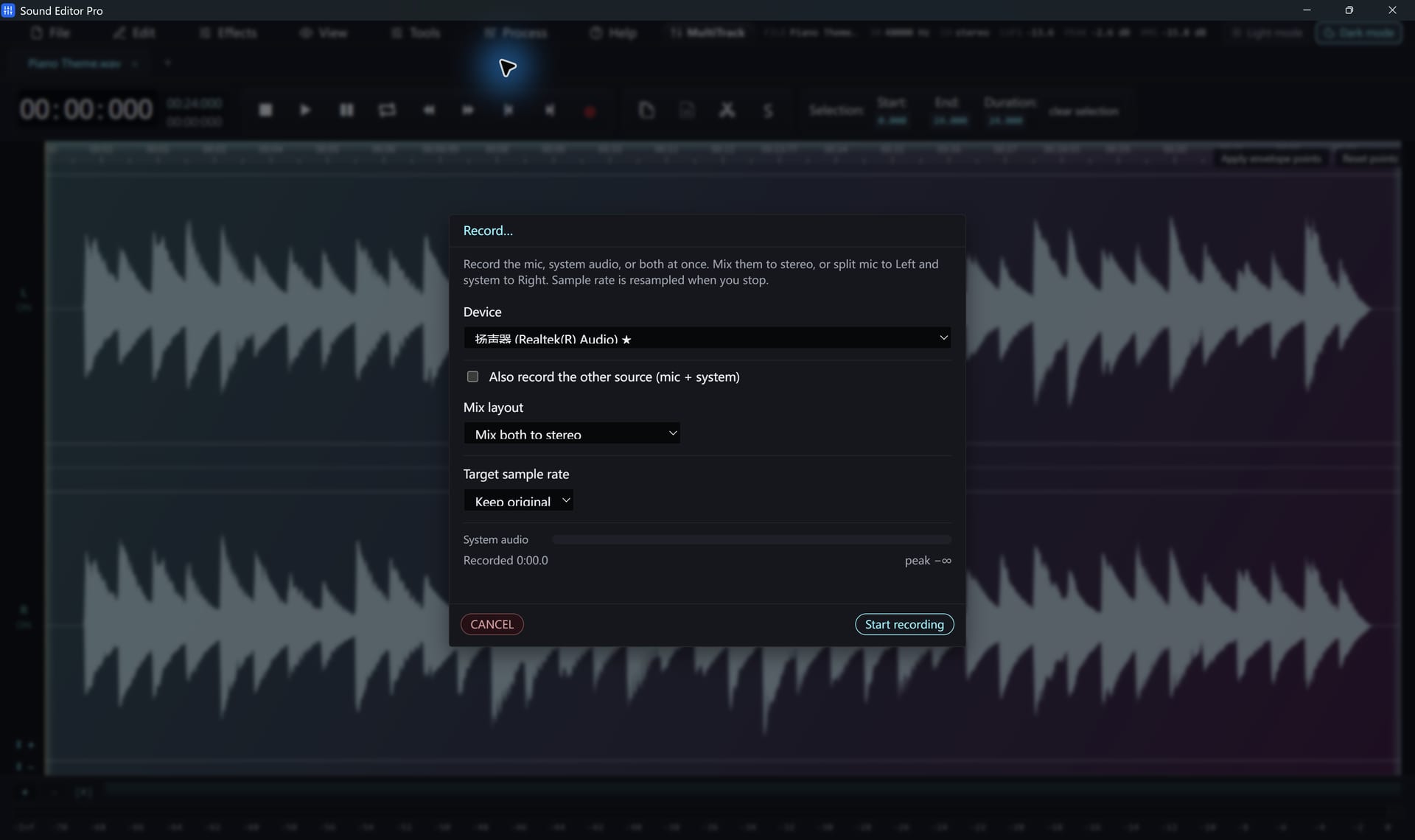
Recording a single source
- Choose Tools › Record.
- Select the input (microphone, line-in) or a playback device for system sound.
- Pick Keep device rate, 44.1, 48 or 96 kHz.
- Watch the live meter while the source plays and adjust the source level.
- Click Start. Elapsed time and the peak indicator update live.
- Click Stop to open the take, or Cancel to discard it.
Two sources at once
Enable the additional source to capture an input and the system playback together. Choose the layout:
| Layout | Result | Use when |
|---|---|---|
| Mixed stereo | Both sources blended | You want a ready-to-share file |
| Split L/R | Input on left, system on right, in one stereo file | You want to balance or separate them later |
After a split recording, use Channel Info to make a mono file from either side.
Punch-in
Place the playhead before a mistake and start punch-in. After an adjustable pre-roll the recorder replaces that passage, or mixes the new take over it.
Windows must allow microphone access for desktop apps. See Troubleshooting.
Hear The Difference On Your Own Material
Download Sound Editor Pro, edit without limits and save WAV for free. Register when you need MP3, FLAC or AAC.
Download Sound Editor ProFree to edit and save WAV · Windows 11 & 10 (64-bit)