Home › Help Center › Record control
Record control
A control-by-control reference for the recording dialog.
Free to edit and save WAV · Windows 11 & 10 (64-bit)
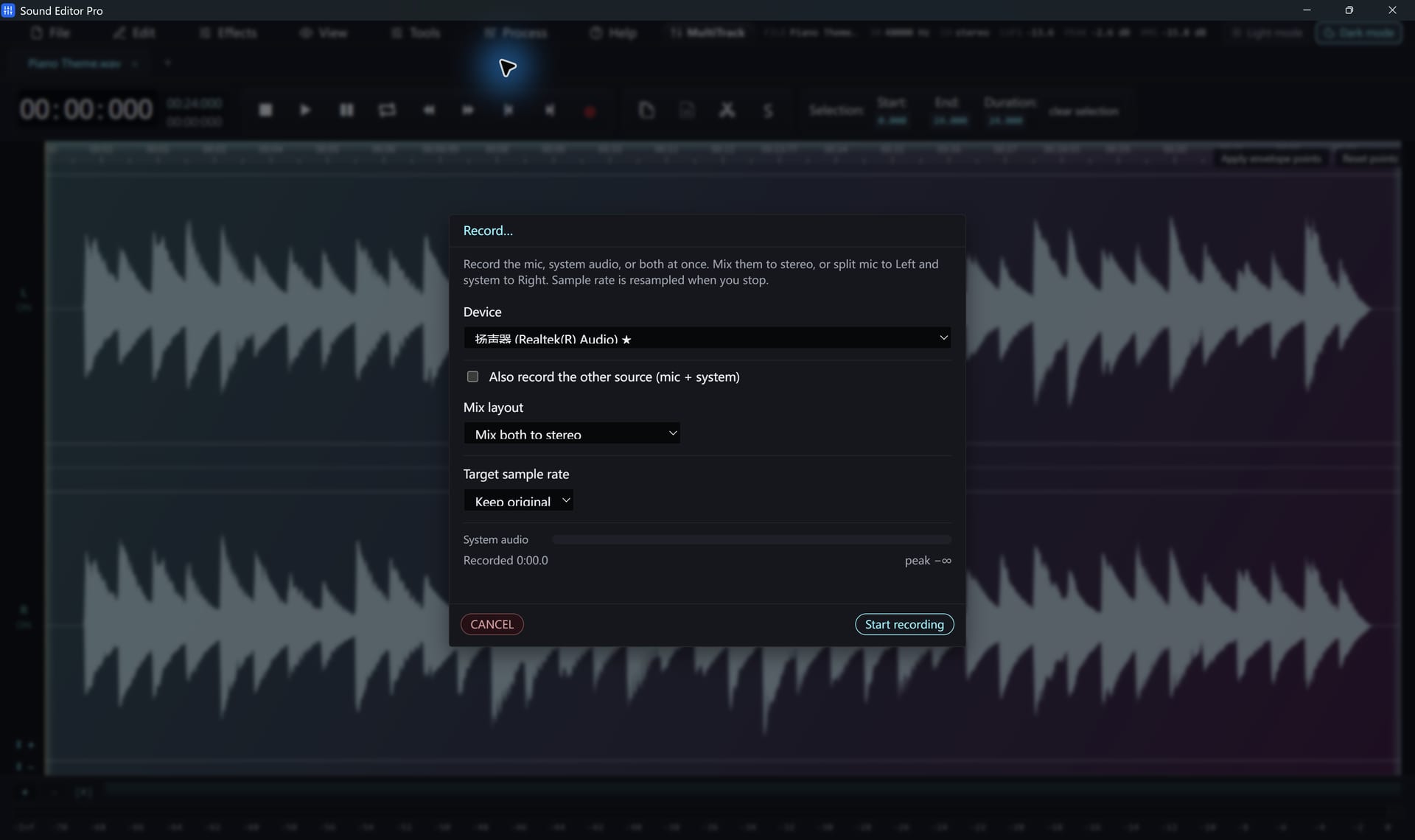
| Control | Function |
|---|---|
| Input device | Microphone or line input to record |
| Playback device | Speakers or headphones to capture via WASAPI loopback |
| Additional source | Records a second source at the same time |
| Channel layout | Mixed stereo, or split left/right |
| Sample rate | Keep device rate, 44.1, 48 or 96 kHz (device permitting) |
| Level meters | Live level per source with peak indication |
| Elapsed time | Length of the current take |
| Start / Stop / Cancel | Begin, finish and open, or discard |
Scheduled recording
Version 8.1 has no timer that starts recording at a set time. Start and stop recordings manually. For long unattended captures, make sure the PC will not sleep (Settings › System › Power).
Recording in the mixer
In the multitrack mixer you can arm a track and record directly onto the timeline while listening to the other tracks.
Common questions
Can I record the microphone and computer sound at the same time?
Yes. Enable the additional source in the recorder, then choose a mixed stereo result or put each source on its own channel (left/right) of one stereo recording.
Which sample rate should I record at?
Keep the device rate unless you have a reason to change it. Choose 48 kHz for video work, 44.1 kHz for music, or 96 kHz if your interface supports it and you need the headroom.
Can I cancel a take?
Yes. Cancel discards the active capture; Stop opens the finished take in the editor.
Hear The Difference On Your Own Material
Download Sound Editor Pro, edit without limits and save WAV for free. Register when you need MP3, FLAC or AAC.
Download Sound Editor ProFree to edit and save WAV · Windows 11 & 10 (64-bit)