Home › Help Center › Setting the recording volume
Setting the recording volume
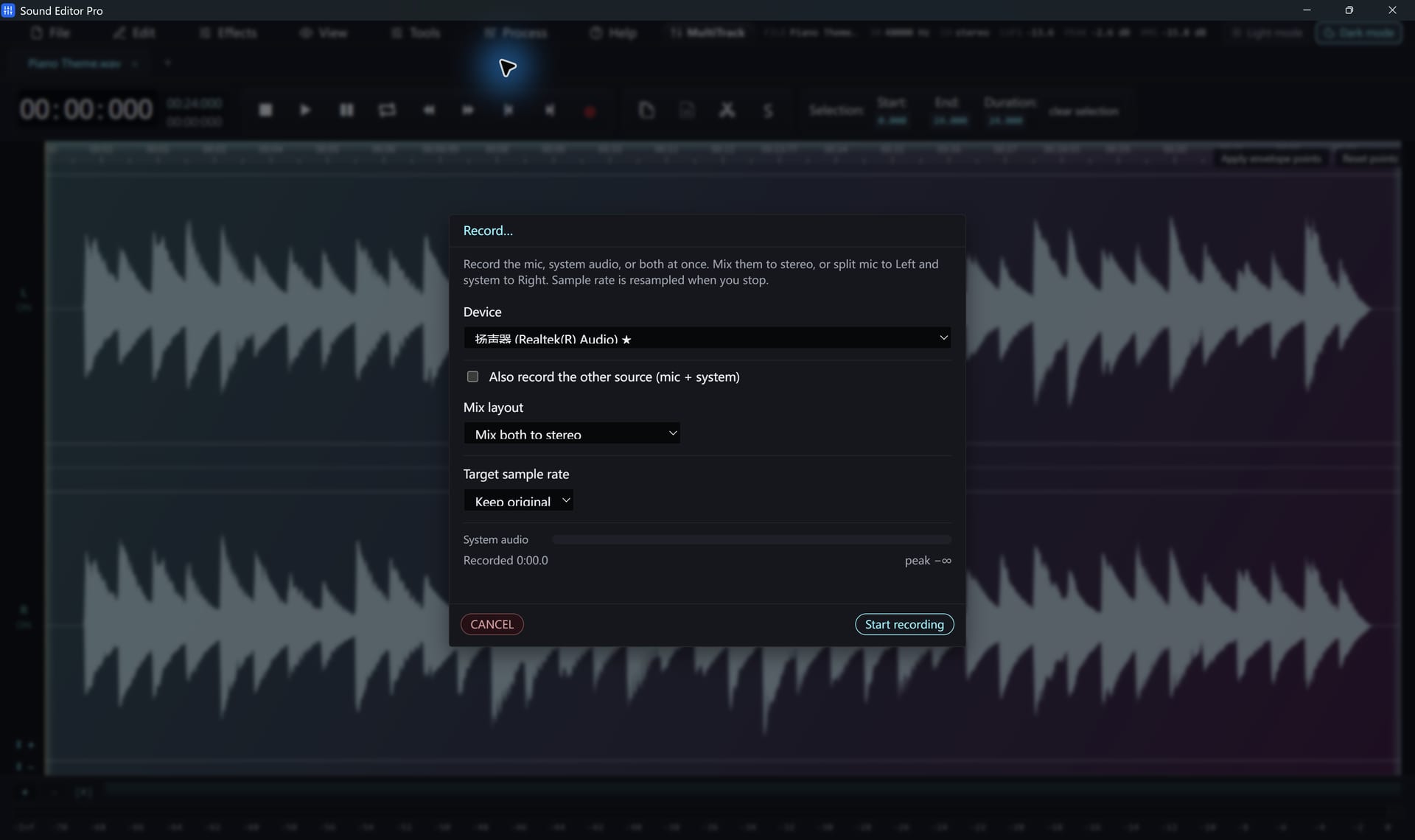
A recording that is too quiet is noisy; one that is too loud is distorted. Aim for the middle.
Free to edit and save WAV · Windows 11 & 10 (64-bit)
| Peak level | Verdict |
|---|---|
| Below −24 dBFS | Too low; noise will be audible when you raise it |
| −18 to −6 dBFS | Ideal for speech and most music |
| −6 to −1 dBFS | Acceptable for controlled sources |
| 0 dBFS / peak light | Clipping; lower the input and record again |
Where to adjust
- On the source: the amplifier output, mixer fader or interface gain knob. Best option.
- In Windows: the device input volume.
- Not in the editor: the editor records what it receives. Fix level at the source.
After recording
Use Normalize to bring peaks to a target, or LUFS loudness matching for consistent perceived loudness across files. If peaks clipped, try De-clip in Repair Studio; results depend on how severe the clipping is.
Background: the decibel unit.
Hear The Difference On Your Own Material
Download Sound Editor Pro, edit without limits and save WAV for free. Register when you need MP3, FLAC or AAC.
Download Sound Editor ProFree to edit and save WAV · Windows 11 & 10 (64-bit)