Home › Help Center › Recording through the sound card
Recording through the sound card
Whatever the source, the signal reaches Sound Editor Pro through a Windows audio device. Get that device right and recording is easy.
Free to edit and save WAV · Windows 11 & 10 (64-bit)
Inputs
| Input | Accepts | Typical source |
|---|---|---|
| Mic (pink, 3.5 mm) | Microphone level, often mono | Headset or desktop mic |
| Line-in (blue, 3.5 mm) | Line level, stereo | Tape deck, amplifier, mixer |
| USB interface | Mic/instrument/line via preamps | Studio microphones, instruments |
| USB turntable or deck | Built-in converter | Plug-and-play transfers |
Never plug a line-level source into a mic input: it will distort. Many laptops have only a headset jack; use a USB interface for clean line recording.
Windows settings
- Open Settings › System › Sound › Input and select the device.
- Open its properties and set the input volume so the meter in Sound Editor Pro peaks around −6 dBFS.
- Under Advanced, choose the default format, for example 2 channel, 24 bit, 48000 Hz.
- Disable audio enhancements on the input if the sound is processed or pumping.
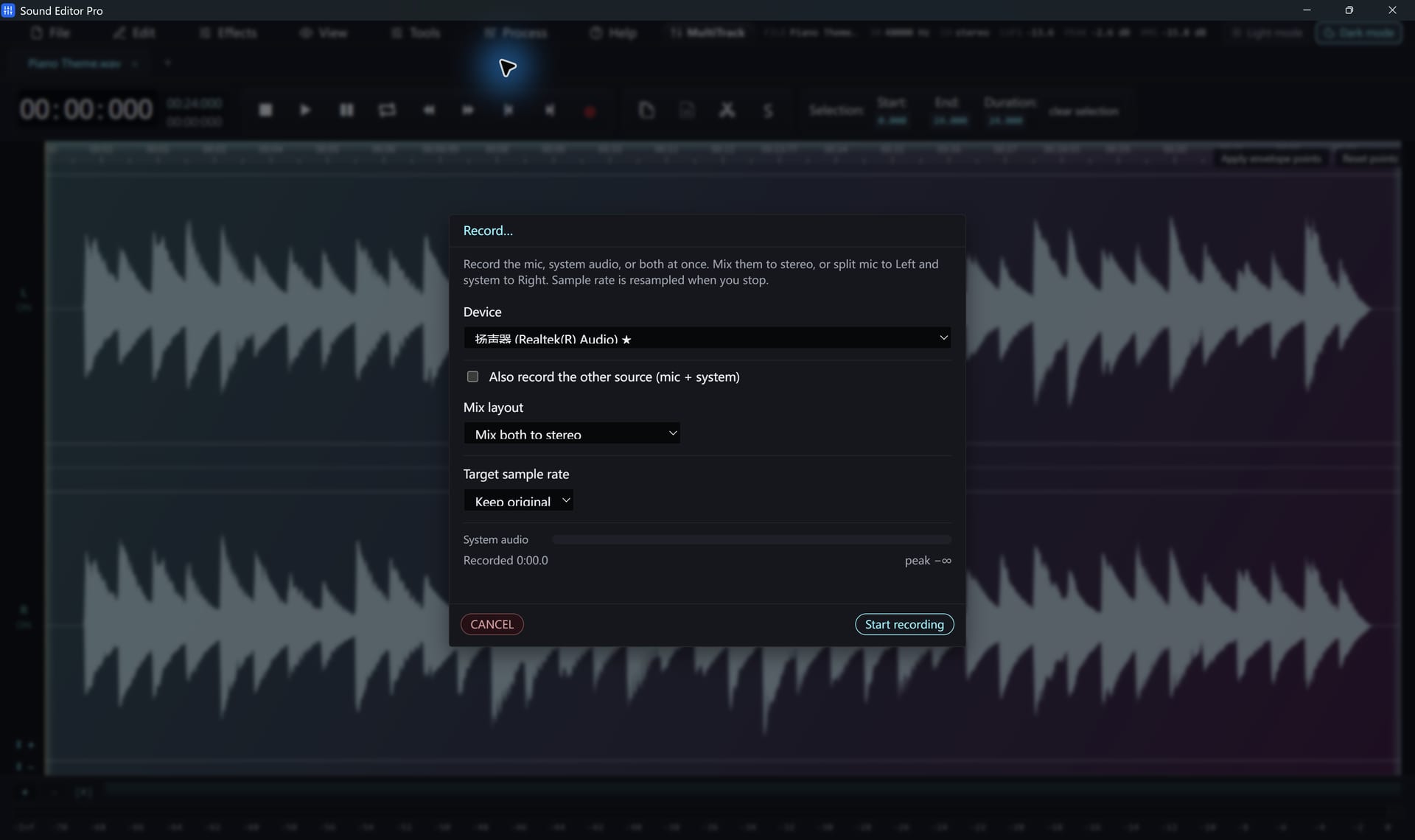
Then in Sound Editor Pro
Select the same device in the recorder and keep the device rate.
Hear The Difference On Your Own Material
Download Sound Editor Pro, edit without limits and save WAV for free. Register when you need MP3, FLAC or AAC.
Download Sound Editor ProFree to edit and save WAV · Windows 11 & 10 (64-bit)