Home › Help Center › Batch converter
Batch converter
Queue many files, choose settings once, convert them all.
Free to edit and save WAV · Windows 11 & 10 (64-bit)
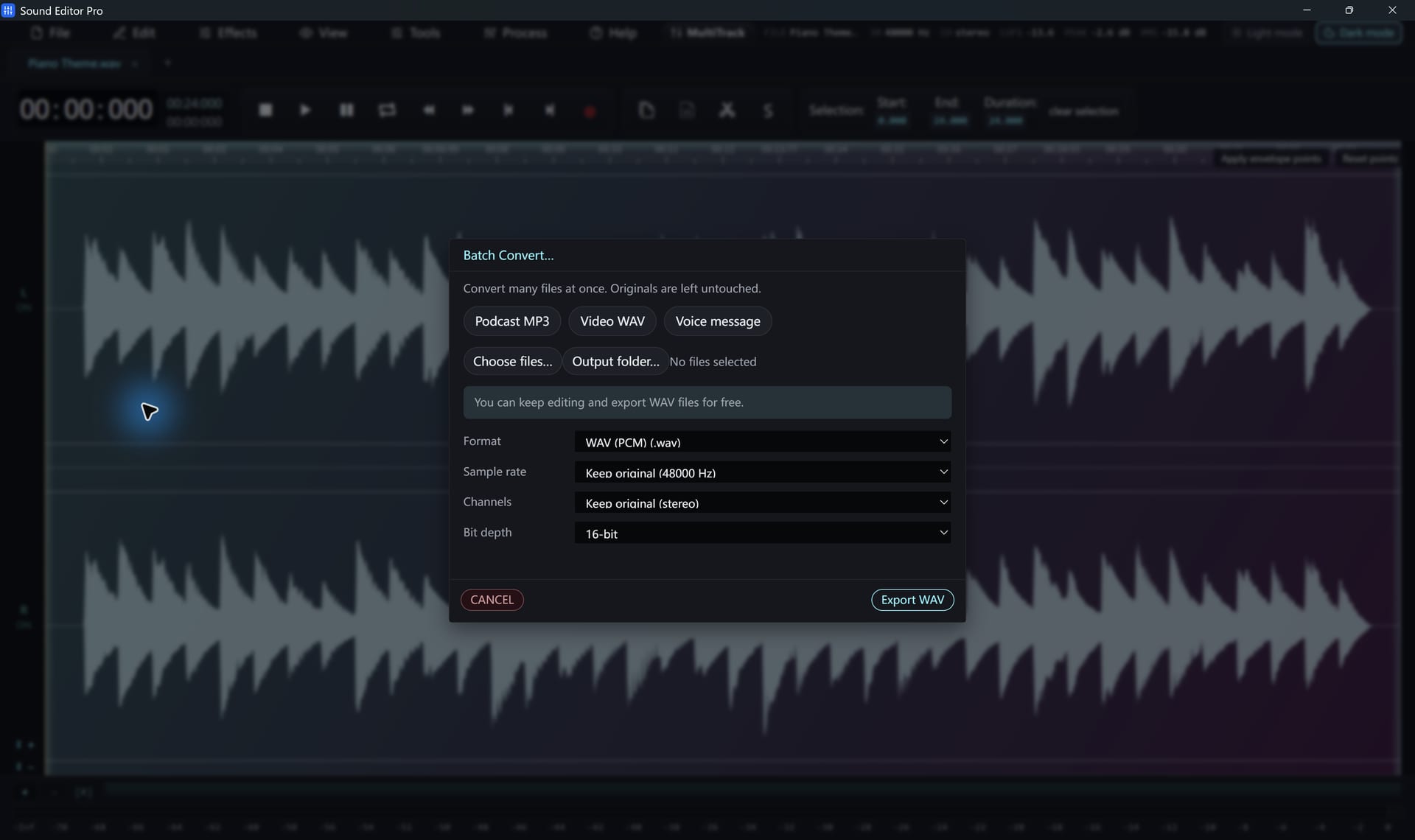
- Open the batch converter.
- Add files or a folder.
- Choose an output folder.
- Choose a preset or format and its settings.
- Start. Progress is shown per file; you can cancel.
What batch conversion does
It converts source files to new files with the chosen settings. It does not apply the edits or effects from the open tab to every file.
In the free edition, batch output is WAV. Register to batch convert to MP3, FLAC, AAC and other formats.
Typical jobs
- WAV transfers of LP tracks to FLAC for an archive
- A folder of lectures to mono MP3
- Interview recordings to 48 kHz WAV for video
Common questions
Does the batch converter apply my edits to every file?
No. It converts source files with shared format, rate and channel settings. Edits and effects in the active tab are not applied to the batch.
Are my originals overwritten?
New conversion copies get a unique name in the output folder, so the source files stay as they are.
Hear The Difference On Your Own Material
Download Sound Editor Pro, edit without limits and save WAV for free. Register when you need MP3, FLAC or AAC.
Download Sound Editor ProFree to edit and save WAV · Windows 11 & 10 (64-bit)