Home › Help Center › Markers and regions
Markers and regions
Markers (formerly bookmarks) label points in time. They are saved with projects and drive slicing.
Free to edit and save WAV · Windows 11 & 10 (64-bit)
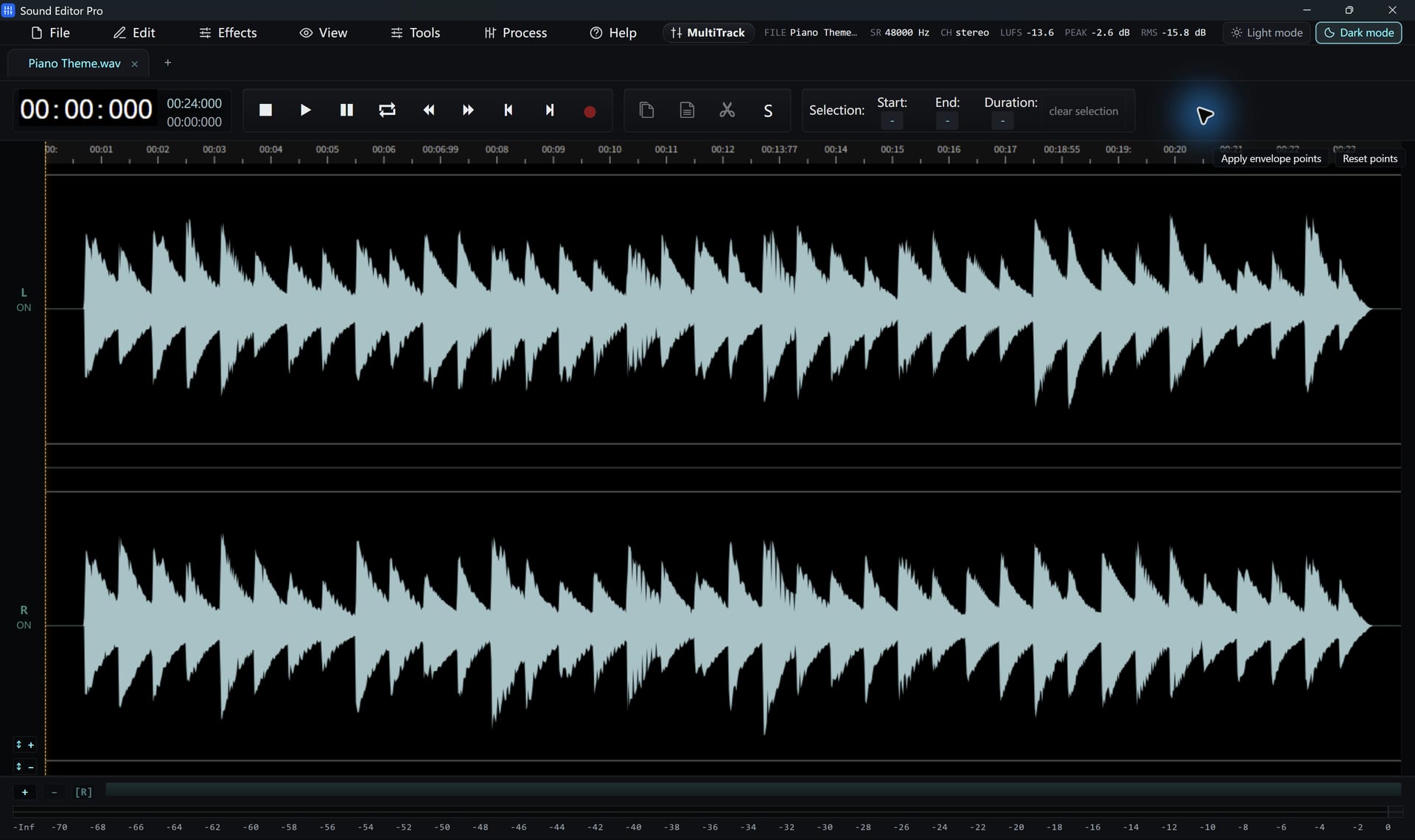
Working with markers
- Add a marker at the playhead, then name it.
- Drag a marker to move it, or edit its time.
- Remove markers individually.
- Markers are stored in .wsmith projects.
Automatic markers
Silence detection adds markers at the boundaries between audio and silence, a quick way to map a long recording before slicing.
Slicing
- Place markers where pieces should start.
- Run Slice at markers.
- Choose a folder. Each piece is written as a WAV file.
For automatic splitting with thresholds, use Split by silence.
Common questions
Are markers saved?
Markers are kept when you save a .wsmith project, along with tabs, selections and other supported session state.
Can I cut a file at every marker?
Yes. Slice at markers writes each piece as a WAV file into a folder you choose.
Hear The Difference On Your Own Material
Download Sound Editor Pro, edit without limits and save WAV for free. Register when you need MP3, FLAC or AAC.
Download Sound Editor ProFree to edit and save WAV · Windows 11 & 10 (64-bit)