Home › Help Center › Selecting regions
Selecting regions
Every edit and effect acts on the selection, so precise selections mean precise results.
Free to edit and save WAV · Windows 11 & 10 (64-bit)
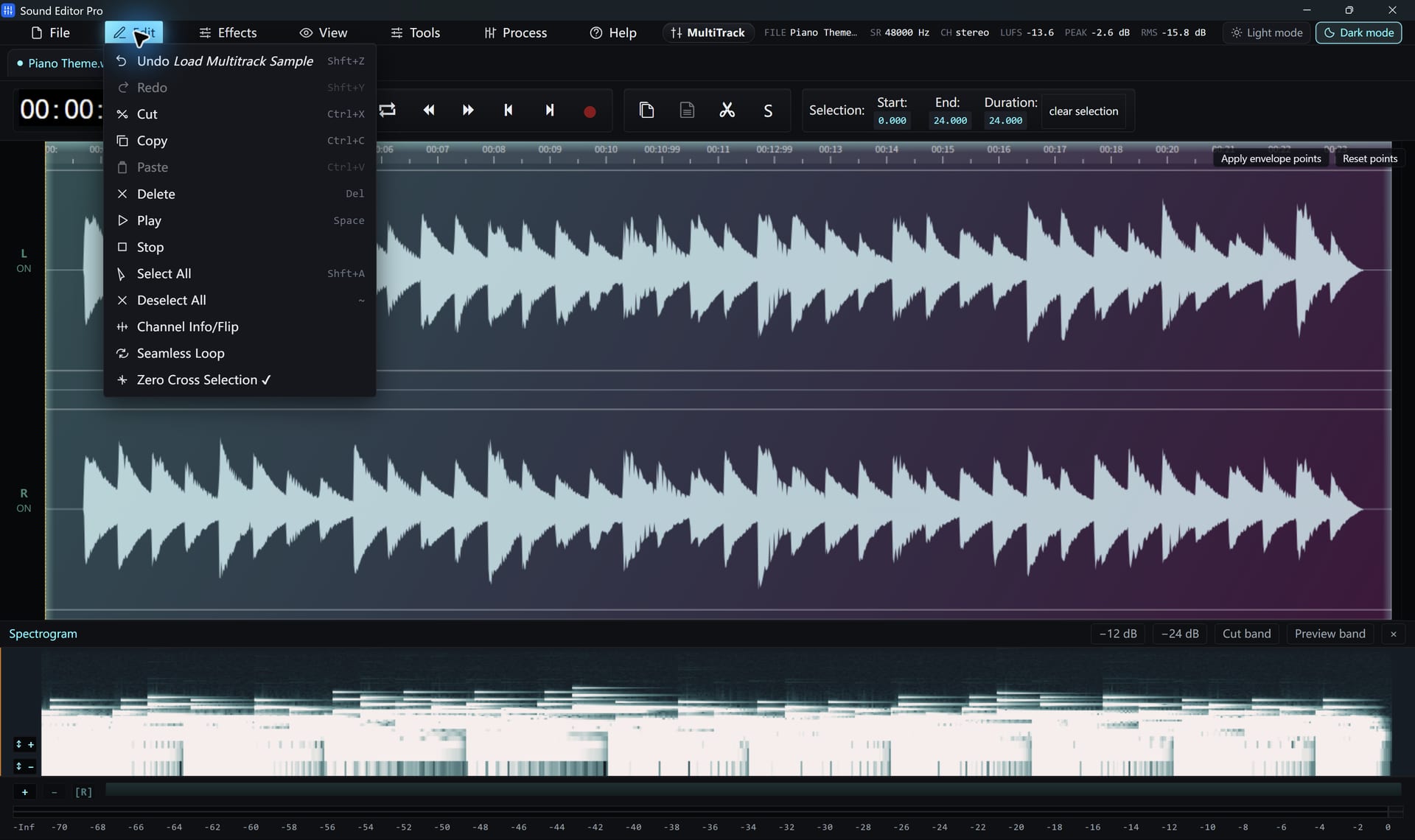
Ways to select
| Method | How |
|---|---|
| Drag | Drag across the waveform |
| Type | Enter start and end times in the selection fields |
| Select all | Ctrl+A |
| Select visible | Selects what is on screen at the current zoom |
| Clear | Deselect to act on the whole file |
| Spectral | Draw a time/frequency box in the spectrogram |
Refining
- Zoom in to place edges between words or beats.
- Snap to zero crossings before cutting.
- Read the duration field to make selections of an exact length.
Using markers
Markers make it easy to return to points and select between them. See Markers and regions.
Common questions
Can I type exact start and end times?
Yes. The selection start and end values can be edited directly, and the selection length is shown next to them.
How do I save only the selected part?
Use Export Selection to write the region to WAV. With a registered copy, Convert / Export can also save the selection in other formats.
Hear The Difference On Your Own Material
Download Sound Editor Pro, edit without limits and save WAV for free. Register when you need MP3, FLAC or AAC.
Download Sound Editor ProFree to edit and save WAV · Windows 11 & 10 (64-bit)