Home › Help Center › Editing using the clipboard
Editing using the clipboard
The clipboard works across tabs, so you can assemble material from several files.
Free to edit and save WAV · Windows 11 & 10 (64-bit)
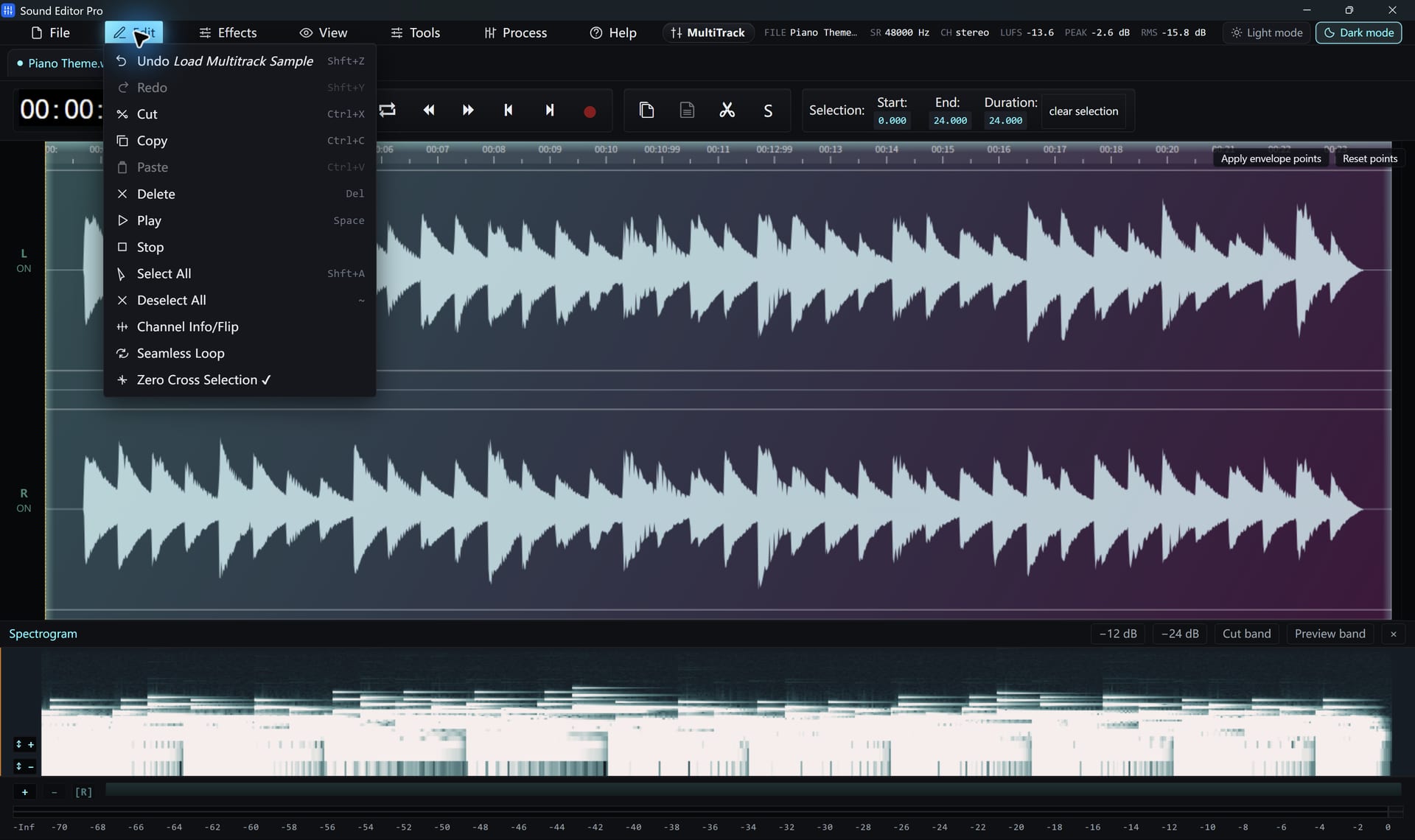
Moving audio between files
- Open both files; each appears as a tab.
- Select in the source tab and copy.
- Switch tabs, place the playhead and paste.
Paste variants
| Method | Result |
|---|---|
| Paste | Inserts and pushes later audio to the right |
| Paste with crossfade | Blends the join over a short time |
| Insert file / mix file | Inserts or mixes another file directly at the playhead |
| Selection to new tab | Puts the selection in its own tab |
| Concatenate tabs | Joins several tabs end to end |
Commands such as Duplicate tab, Selection to new tab and Concatenate tabs are fastest through the command palette (Ctrl+K).
Common questions
Can I paste between two files?
Yes. Copy in one tab, switch to another tab and paste at the playhead. Each open file has its own tab.
How do I avoid clicks where I paste?
Turn on snap to zero crossings before selecting, and use the optional short crossfade when pasting.
Hear The Difference On Your Own Material
Download Sound Editor Pro, edit without limits and save WAV for free. Register when you need MP3, FLAC or AAC.
Download Sound Editor ProFree to edit and save WAV · Windows 11 & 10 (64-bit)