Home › Help Center › Record quick tour
Record quick tour
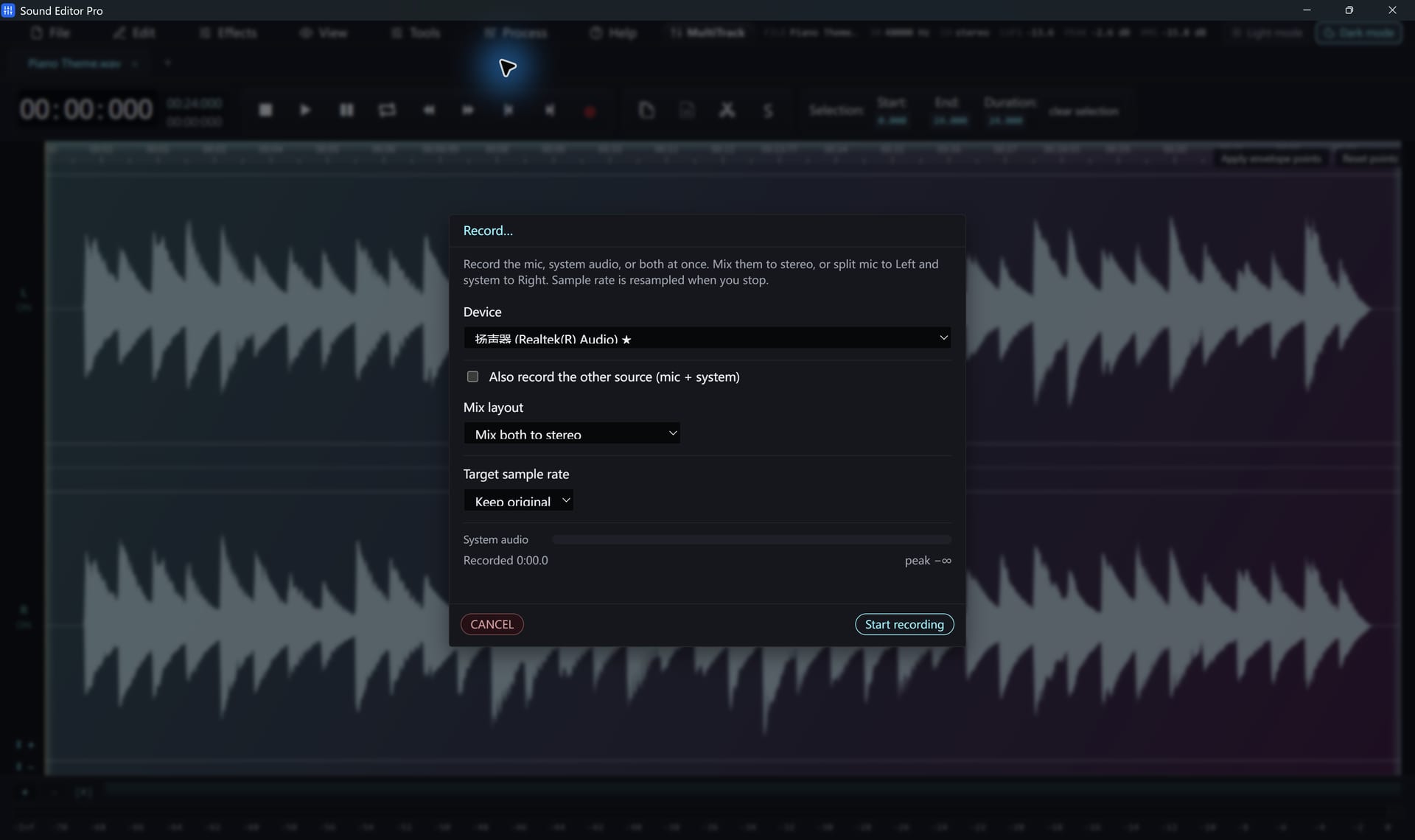
The complete recording workflow on one page. Each step links to a detailed topic.
Free to edit and save WAV · Windows 11 & 10 (64-bit)
| Step | What to do | Details |
|---|---|---|
| 1. Connect | Microphone, line source, turntable, tape deck or system playback | Connecting equipment |
| 2. Configure | Choose the device and sample rate | Record control |
| 3. Level | Peaks around −6 dBFS, never touching 0 | Setting the volume |
| 4. Record | Start, monitor the meter, stop | Record |
| 5. Clean | Remove clicks, hum and noise | Noise reduction and repair |
| 6. Split and save | Cut into tracks, save WAV or export | Split by silence |
Choosing a sample rate
Keep the device rate unless you have a reason to change it. Use 44.1 kHz for music destined for CD or streaming, 48 kHz for video, and 96 kHz for archival transfers if your interface supports it.
Before a long session
- Make a 30-second test recording and play it back.
- Check free disk space: a stereo 48 kHz 32-bit float recording uses about 23 MB per minute.
- Enable auto-backup.
Hear The Difference On Your Own Material
Download Sound Editor Pro, edit without limits and save WAV for free. Register when you need MP3, FLAC or AAC.
Download Sound Editor ProFree to edit and save WAV · Windows 11 & 10 (64-bit)