Home › Help Center › Saving and exporting
Saving and exporting
Keep a lossless master, then make delivery copies for each destination.
Free to edit and save WAV · Windows 11 & 10 (64-bit)
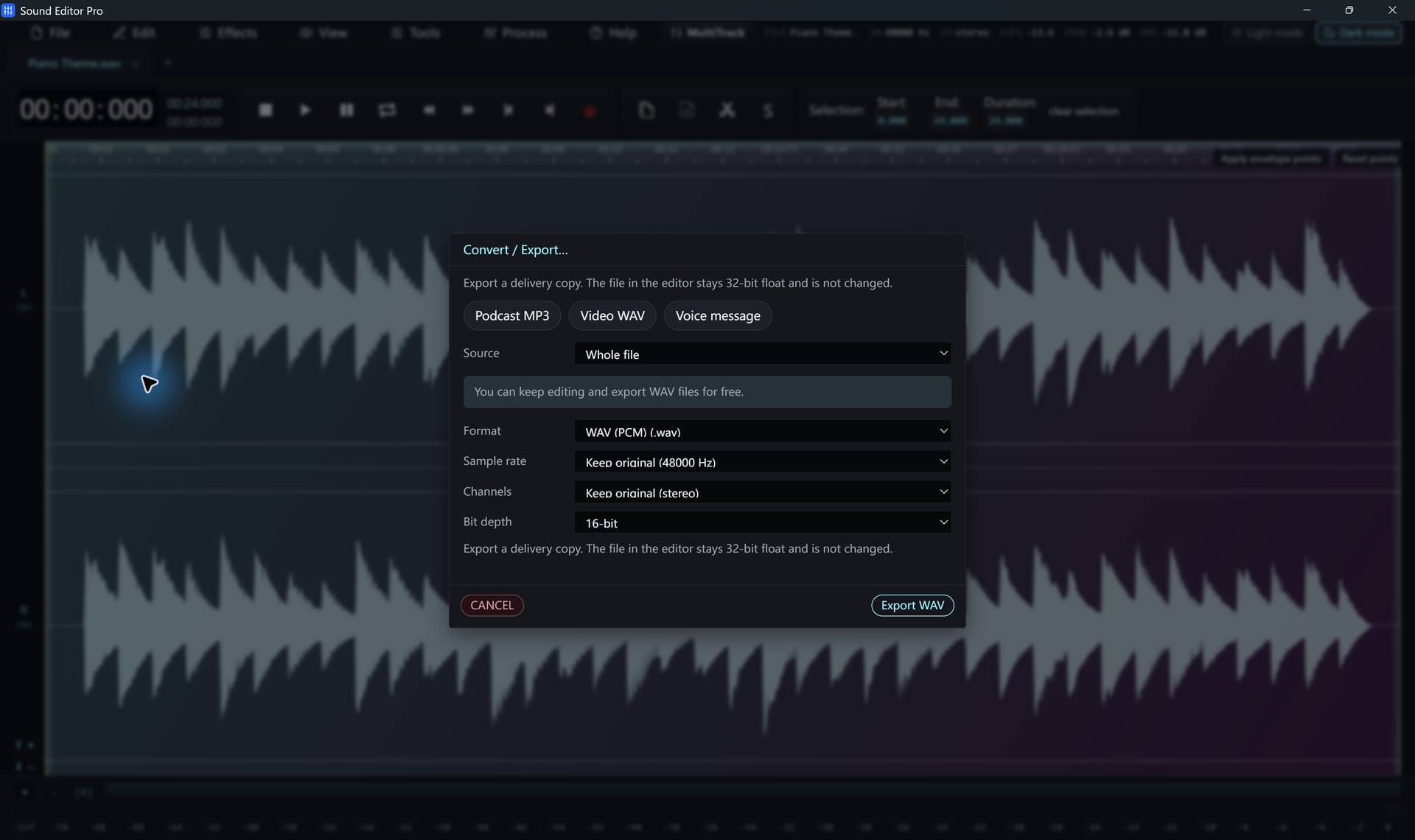
Convert / Export
- Choose Convert / Export.
- Pick the scope: whole audio or selection.
- Choose a preset or a format.
- Set sample rate, channels, bit depth or bitrate.
- Select the destination and export. Non-WAV formats require registration.
Delivery presets
| Preset | Use |
|---|---|
| Podcast MP3 | Spoken-word episodes |
| Video WAV 48 kHz | Video editors and NLEs |
| Voice note | Small speech files |
Good practice
- Save the edited project and a 32-bit float WAV master first.
- Export lossy formats once, from the master, not from another lossy file.
- New conversion copies get unique names; Save can replace the target you choose.
Common questions
Is saving WAV free?
Yes. Save, Save As and WAV export work in the free edition. Other formats unlock when you register.
Which WAV type should my master be?
Save the working master as 32-bit floating-point WAV. It keeps the most detail for later edits; make 16- or 24-bit copies for delivery.
Hear The Difference On Your Own Material
Download Sound Editor Pro, edit without limits and save WAV for free. Register when you need MP3, FLAC or AAC.
Download Sound Editor ProFree to edit and save WAV · Windows 11 & 10 (64-bit)